Hello, this is the nat, Inc. Blog Editorial Team.
It has been about half a year since the release of Scanat,” an app that uses the iPhone and iPad’s LiDAR sensors to create and measure 3D models, and the number of companies using it has now exceeded 70.
With the launch of subscriptions through the App Store, and driven by our desire for Scanat as possible Scanat and use Scanat, we’ve decided to start this blog.
On this blog, we plan to focus on introducing how to use Scanat, update information, handy tips, and examples of models we’ve actually scanned.
In this first installment, we’ll cover “How to Download and Create an Account.”
■How to Download / Create an Account
Scanat is an app available on the App Store. You can find it by searching for Scanat in the App Store and then downloading it.

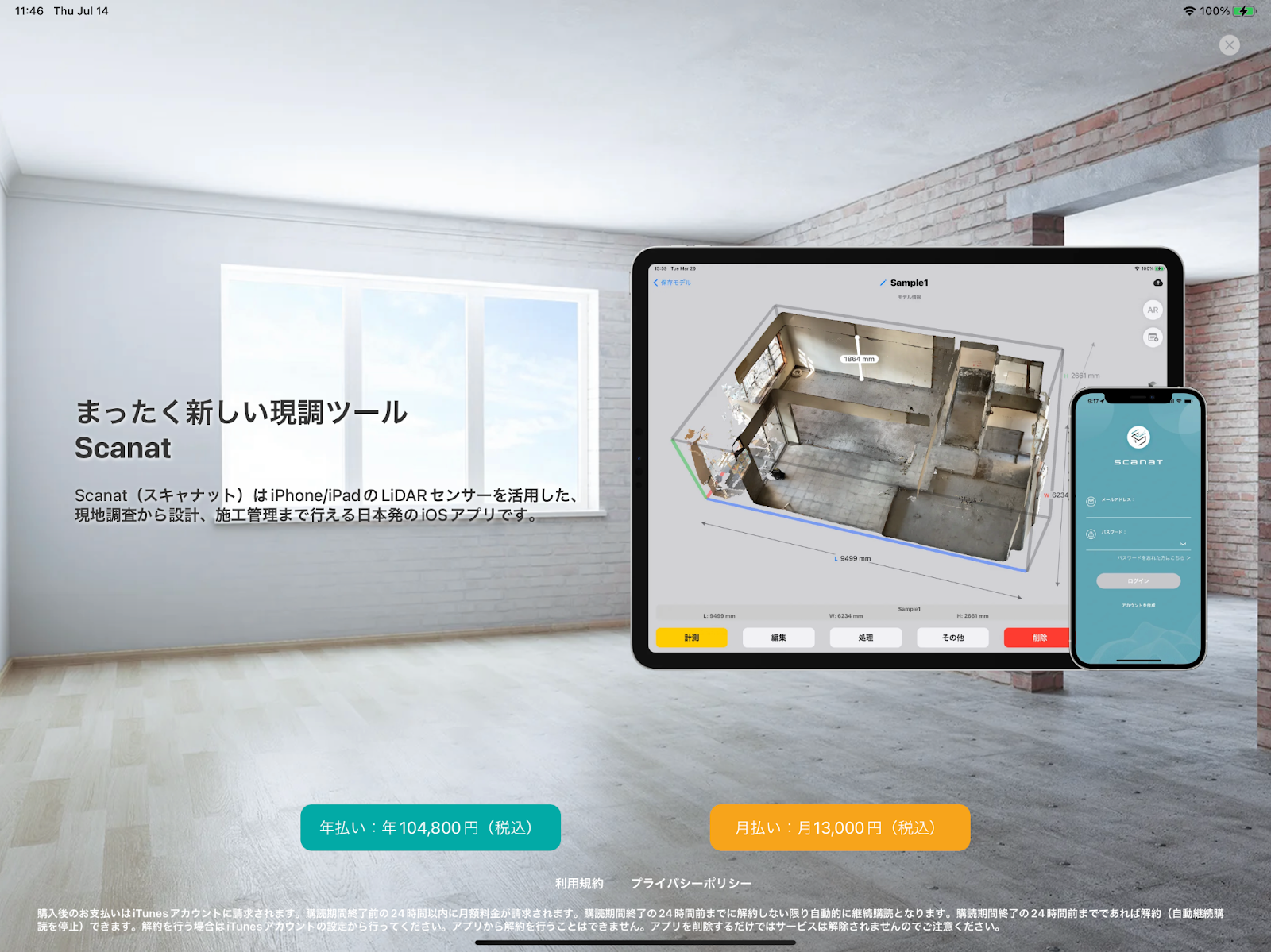
For direct contracts nat, the service fees are an initial setup fee of 10,000 yen, plus 72,000 yen per year or 9,000 yen per month.
If you purchase through the App Store, the annual fee is 104,800 yen, or 13,000 yen per month (as of August 2022).
If you plan to use our service for three months or longer, a direct contract is more cost-effective. If you would like to sign a direct contract, please contact nat ( nat ).
Equipment capable of measuring dimensions—such as those of spaces—is expensive, ranging from several hundred thousand to several million yen.
In addition, while there are many free apps available that use point cloud data, they are not suitable for measurement because the data quality and accuracy are low.
Scanat lets you create and measure models at an affordable price.
Once you've downloaded the app and tapped on it, this screen will appear.
First, create an account.
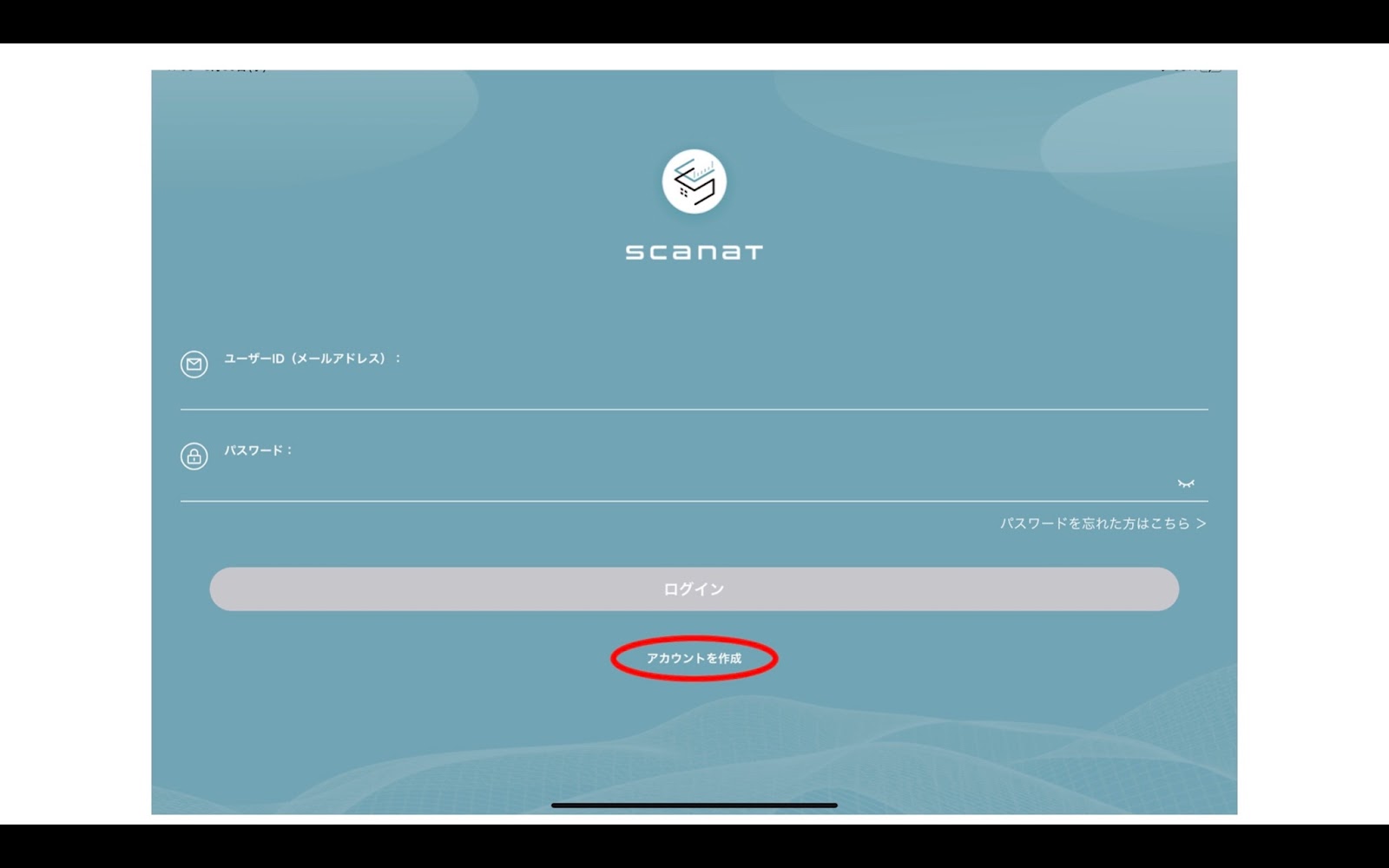
Click "Create Account" at the very bottom. This will bring up the screen shown below.

① Enter your email address in the "Username (Email Address)" field.
② Click “Send Verification Code.”
③ You will receive an email titled "Authentication Code" from the email address natnat. nat.
④ Enter the 6-digit number listed in the email into the "Authentication Code" field.
⑤ Enter the password you use to log in to the app in both fields under “Confirm Password.” The password must be at least 6 characters long and consist of a combination of single-byte alphanumeric characters.
⑥ Review the Terms of Service and click “Agree to the Terms and Register.”

Registration is complete.
Click "Log In" to proceed to the payment screen.

Select your preferred payment method and proceed to checkout.
Once the payment process is complete, you'll be able to start using the app.
In the next post, I’d like to show you how to use the app.