Hello, this is the nat, Inc. Blog Editorial Team.
Last time, we covered “ How to Download and Create an Account ."
In this post, I’d like to show you how to take photos using Scanat app and create a 3D model.
Everyone, have you finished registering your accounts yet?
If you made your payment through the App Store, you can start using the service immediately. However, if you have a direct contract nat, a representative will activate your account after you complete the registration process. Please note that there may be a delay between registration and activation, so if you are in a hurry, please contact nat Inc nat (03-6822-8600).
When you launch Scanat, the "Save Model" screen appears.
The "Saved Models" screen displays the message, "Welcome Scanat! Please scan to add a new model," and there are no models listed yet.

To start recording, tap the camera button in the lower-right corner.

The screen shown in this video is the recording screen.
Hold your iPad or iPhone in portrait orientation while shooting. Shooting the same spot repeatedly can cause noise, which will prevent you from capturing clear images of the model. Since you cannot merge multiple shots, visualize the route you’ll take to capture the entire floor before you start shooting. Once you have a clear plan, begin shooting.
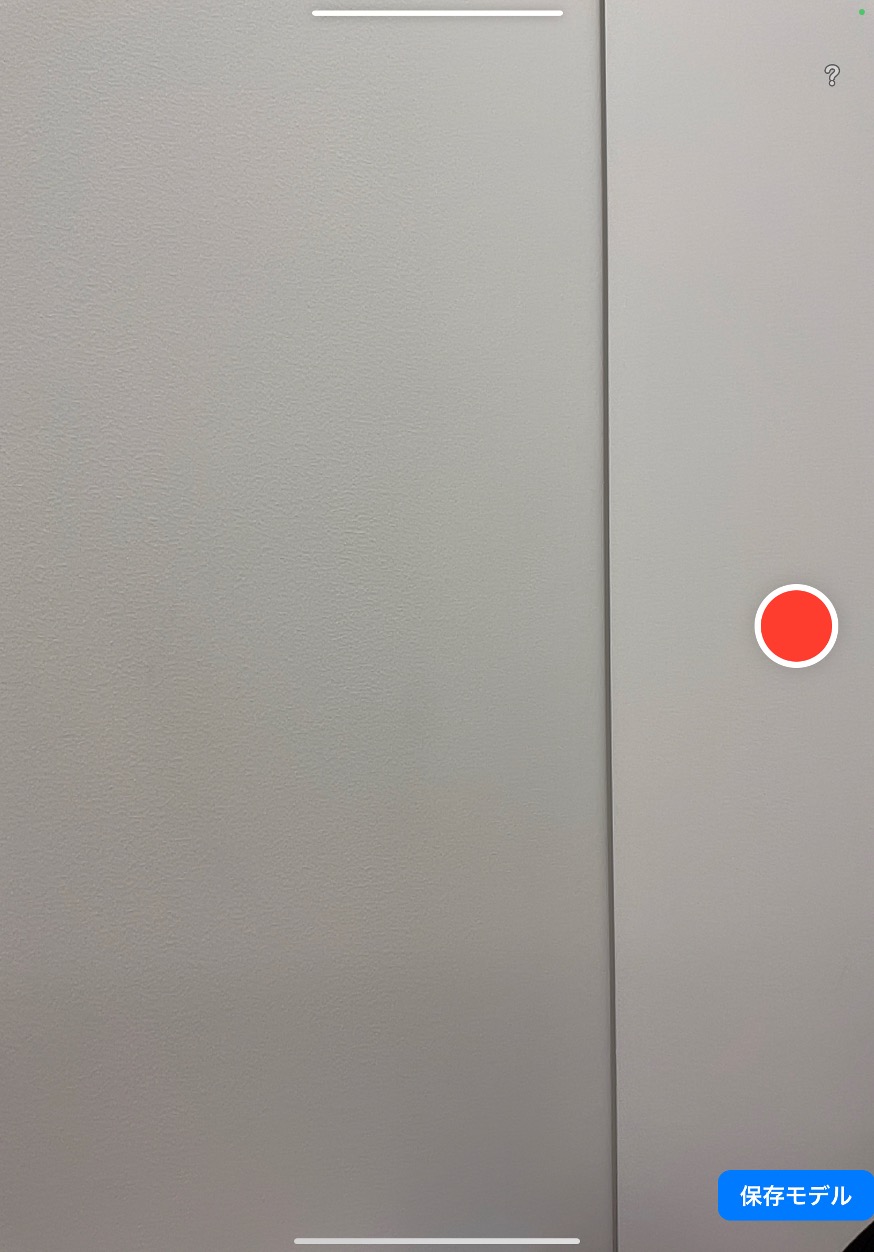
Press the red circle to start recording.

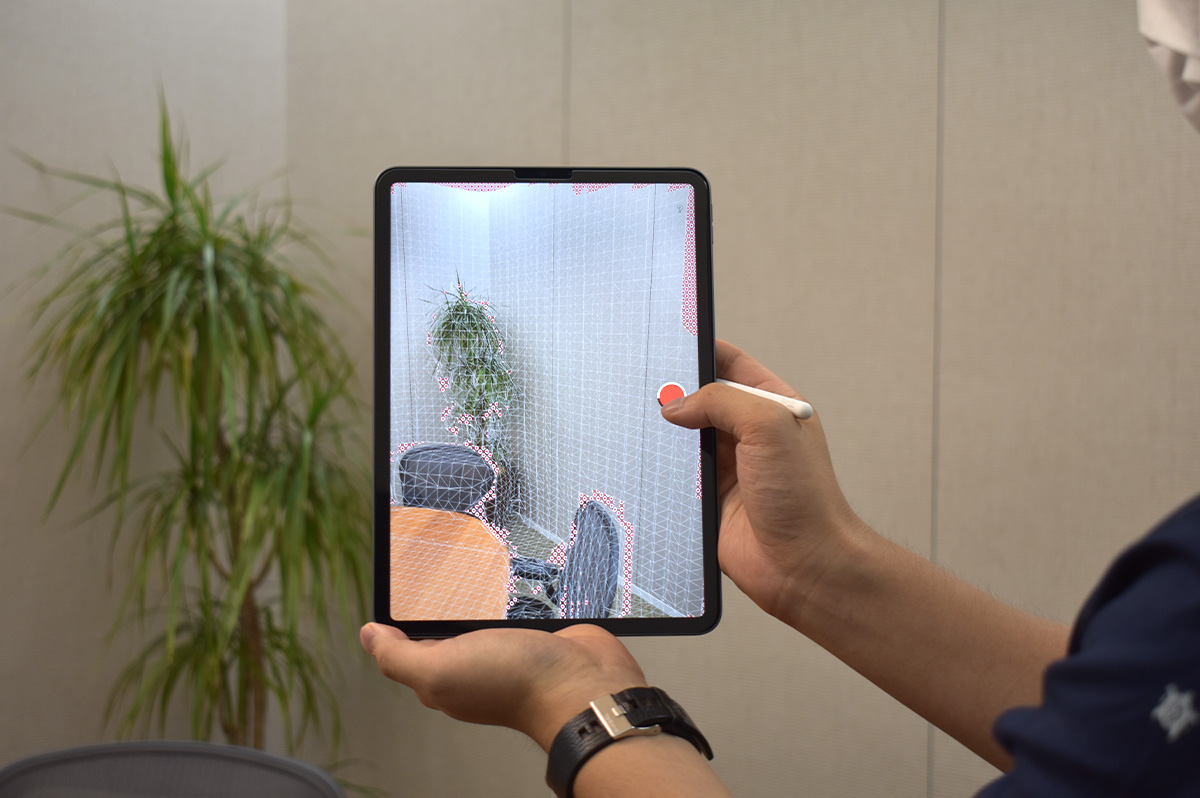
This is what it looks like during filming.
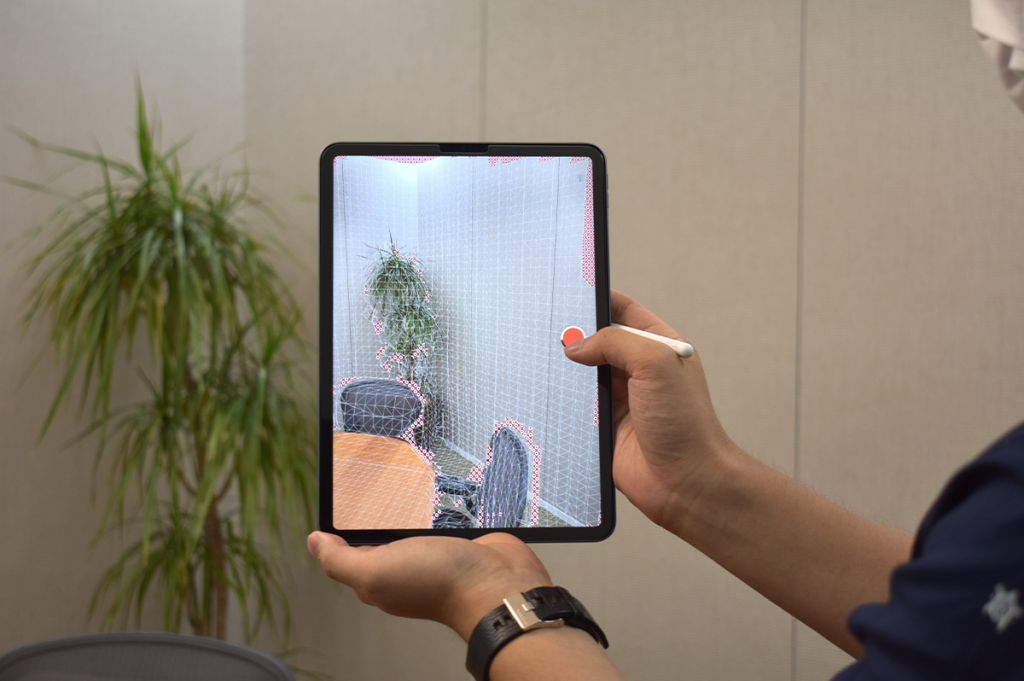
While taking photos, try to position yourself as directly in front of the subject as possible. Remove the red dots in the following order: wall → ceiling → wall → floor → wall.
When the red dot disappears, the recording is finished. To end the recording, press the same red circle.
The images you take will be saved on the Save Model screen (link).
Once you finish shooting, you will be automatically redirected to the model processing screen (link).
If you want to take multiple shots in a row, you can process them all at once later, but since the image quality is poor before processing, we recommend processing each shot individually to check for any missed shots.
Next time, I'd like to write about model processing.