Hello, this is the nat Blog Editorial Team.
Last time, "Tips and Precautions for Model Shoots" .
I wrote about model photography in Part 2, “How to Create 3D Models” (
Scanat ), but this time, to help you take even better photos of your models, I’d like to introduce subjects that Scanat struggles with over the course of two posts Scanat
Scanat.
■Table of Contents
The following are examples of objects that are difficult Scanat to scan.
Mirrors and similar surfaces are difficult to capture because the LiDAR sensor reflects off them, causing the data to scatter.
As shown in this photo, no data is captured at all.
Additionally, since the sensor also detects the space reflected in the mirror, this can result in the creation of extra space.
< Scanat model data from when the mirror was photographed>
Since mirrors cannot be photographed, it is best to avoid taking pictures of them whenever possible.
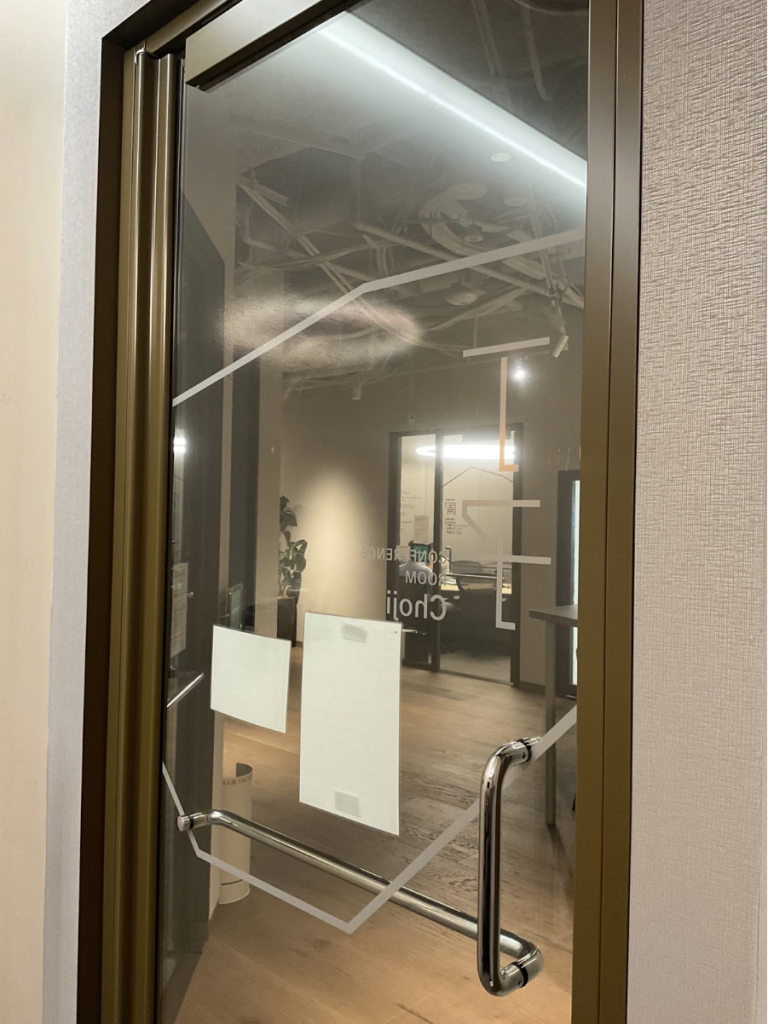
Since LiDAR sensors can see through transparent areas such as windows and glass surfaces,
the model cannot account for the presence of glass.

For example, if there is a glass door like this, the red dot will not disappear during filming, as shown below.
When I create a model, it retrieves data from outside the room as shown below.
Since you can capture the area around the glass, such as the window frame, continuing to take photos without panicking even if the red dot does not disappear will allow you to accurately capture the information on that surface.
It is generally said that black absorbs LiDAR sensors, which can lead to errors.
While this isn’t particularly noticeable in a 3D space,
the data tends to become distorted near the edges of the monitor, and I suspect this might be the reason.
Since Scanat combines data from LiDAR sensors with camera images when creating 3D models,
if the shooting location is too dark, while it won’t affect the LiDAR data, the resulting dark images will cause the model to appear entirely black,
making it difficult to identify the objects in the scene.
However, since brightness has no effect whatsoever on the LiDAR sensor's data acquisition, point cloud data is being acquired without any issues.
Therefore, if you check the mesh data, you should be able to take measurements without any issues.
To check the mesh data, click the "+" button in the lower-right corner of the model information screen and select the green cube icon.
The mesh data is shown below. This will allow us to measure areas that were previously too dark to see clearly.
If you want to create a high-quality 3D model rather than just taking a measurement, please set up a light source and ensure the area is well-lit when taking the photo.
We occasionally receive questions asking, "Can't I just use the light on my iPhone or iPad, or the light on my helmet?"
However, we do not recommend this because the area of light shifts every time the photographer moves, resulting in unstable photo data.
There are about three more subjects I find difficult to photograph, so I’d like to introduce them next time.