BLOG
August 29, 2022
4th Scanat Blog: "Tips and Precautions for Model Photography"

Hello, this is the nat Blog Editorial Team.

Last time, We introduced .

Regarding the photo shoot Part 2 , but this time I’d like to share some tips and things to keep in mind when photographing models.

Did you get a good shot of the model?

Since Scanat is an app for measuring finished models, we believe that the most important factor is whether the models can be photographed clearly.

In fact, even among our current customers, there are those who get great shots of their models after taking them, and those who don’t.

If the model isn’t captured properly, it will prevent accurate measurements from being taken, and Scanat won’t be able to perform to Scanat full potential.

This information is essential for getting Scanat out Scanat, so be sure to check it out.

There are a few tips for taking good photos of models. Here are the tips we’ve learned so far.

First, regarding the specifications of the iPad and iPhone Pro: while models equipped with a LiDAR sensor can capture images, processing may take longer, and apps are more likely to crash. Considering memory and CPU specifications, we recommend the latest models.

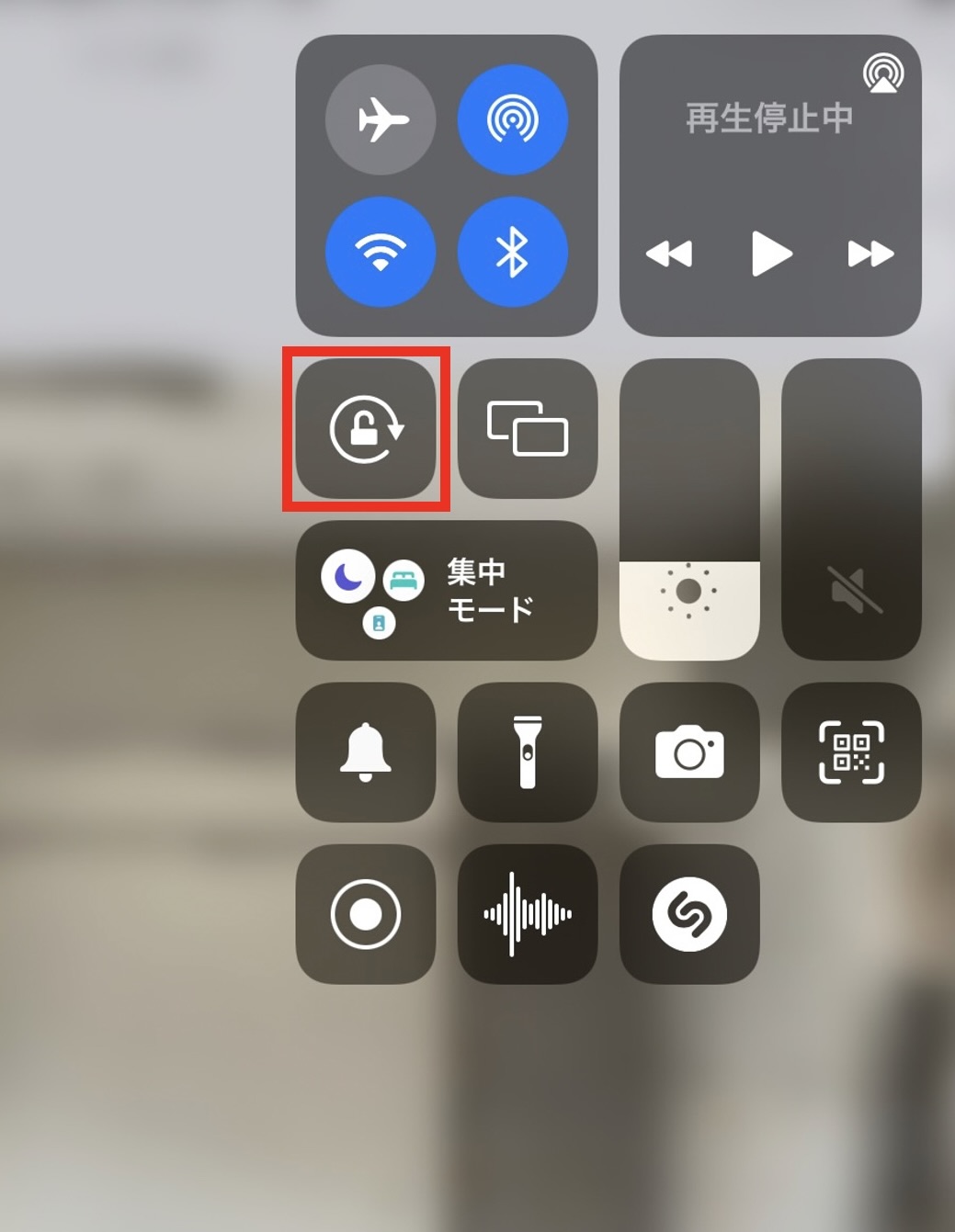
Until you get used to using your iPad or iPhone, lock the screen rotation and hold the device in portrait orientation while taking measurements. Please avoid turning it sideways or rotating it while taking photos.

*You can lock the rotation by tapping the button above in the Control Center on your iPad or iPhone.

When taking photos, move slowly across the entire floor as if tracing a single continuous line, and avoid photographing the same spot multiple times. Before you begin, visualize the route you will take to capture the data.

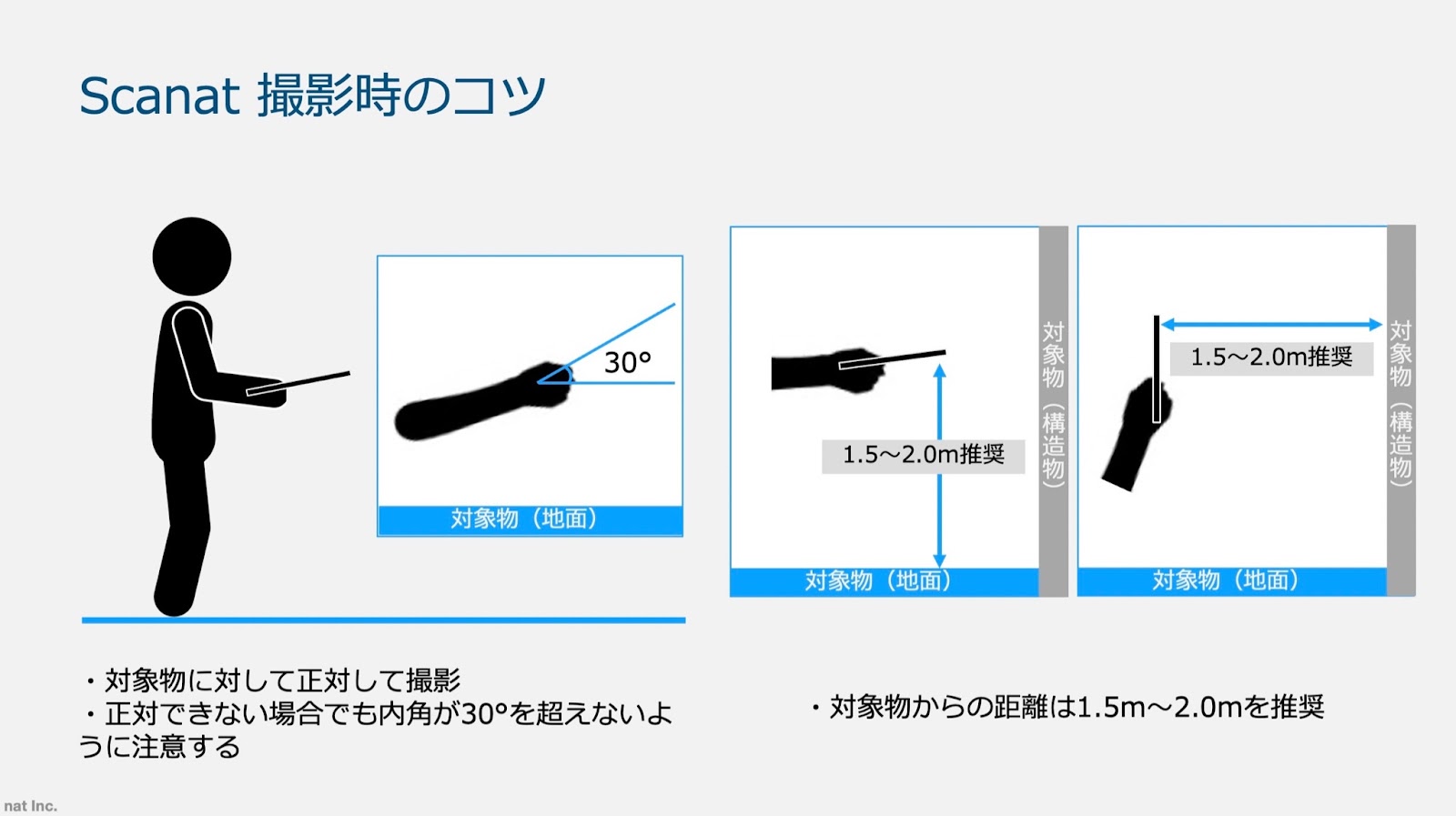
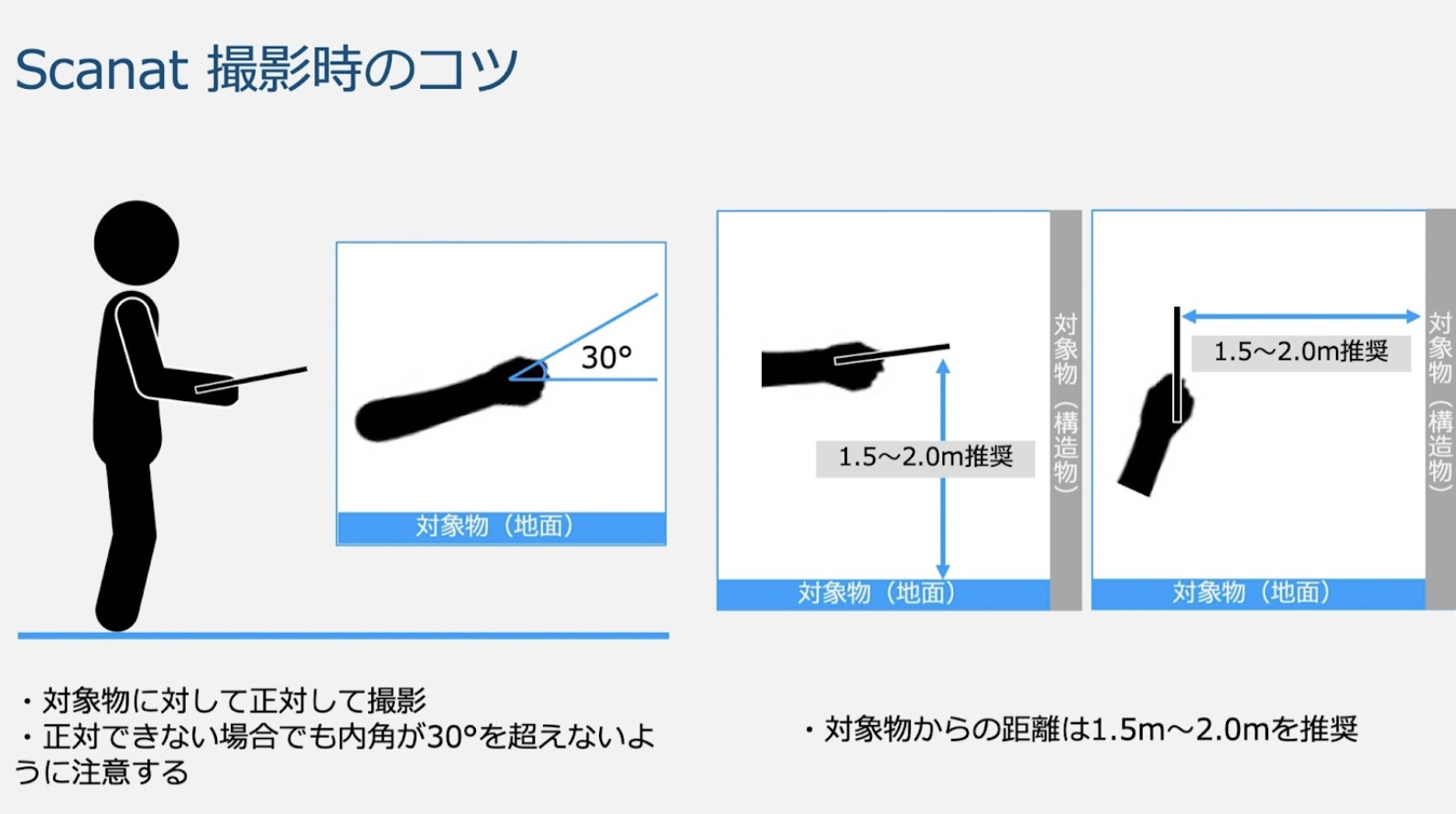
When taking photos, make sure to position your iPad or iPhone directly in front of the subject (such as walls, corners, ceilings, or floors). When indoors, follow the sequence floor → wall → ceiling → wall → floor → wall, and imagine you’re painting a wall as you fill in the red dots to ensure a clean, clear image.

After reviewing the processed photos of the model, if you feel that they didn’t turn out well, 

From the "Other" section of the 3D model diagram,

Check the scanned photos.

If any of the photos are blurry, it’s because I moved too quickly while taking them, so I’ll make sure to shoot at a consistent speed from now on.

Areas with motion blur tend to have fewer points in the point cloud and often result in distorted meshes, so be especially careful to move slowly when scanning areas where you need accurate data, such as the corners of a room.

The most important thing when taking photos is to keep the subject directly in front of your iPad or iPhone. If you stand still and try to photograph the entire room, you’ll end up with many shots taken at an angle, so please walk slowly around the room while taking photos.

Next time, I’d like to write about objects that are difficult for Scanat to scan.

© 2022 - 2026 nat Inc. All rights reserved.