Hello, this is the Blog Editorial Department at natCo., Ltd.
Last time, we introduced .
In this post, I’d like to discuss how models are processed and their quality.
Generally speaking, LiDAR sensors are extremely expensive, and devices equipped with them often cost anywhere from several hundred thousand to several million, but the LiDAR sensors built into iPads and iPhones capture a small number of point clouds and are not of particularly high quality.

Using our proprietary algorithm, we remove low-quality point cloud data from the original set. This technology enables measurements accurate to the millimeter on the resulting 3D model.
Next, we generate mesh data from the resulting point cloud data.

Furthermore, by overlaying the photo data captured simultaneously during filming onto the mesh data,Scanat a high-quality model is generated on top of it. You can perform these steps even in locations without a Wi-Fi connection.
Although the post-capture processing time is very short (about 10 seconds), the system performs the complex tasks described above during that brief period.
Now, let's get back to the model-building process.
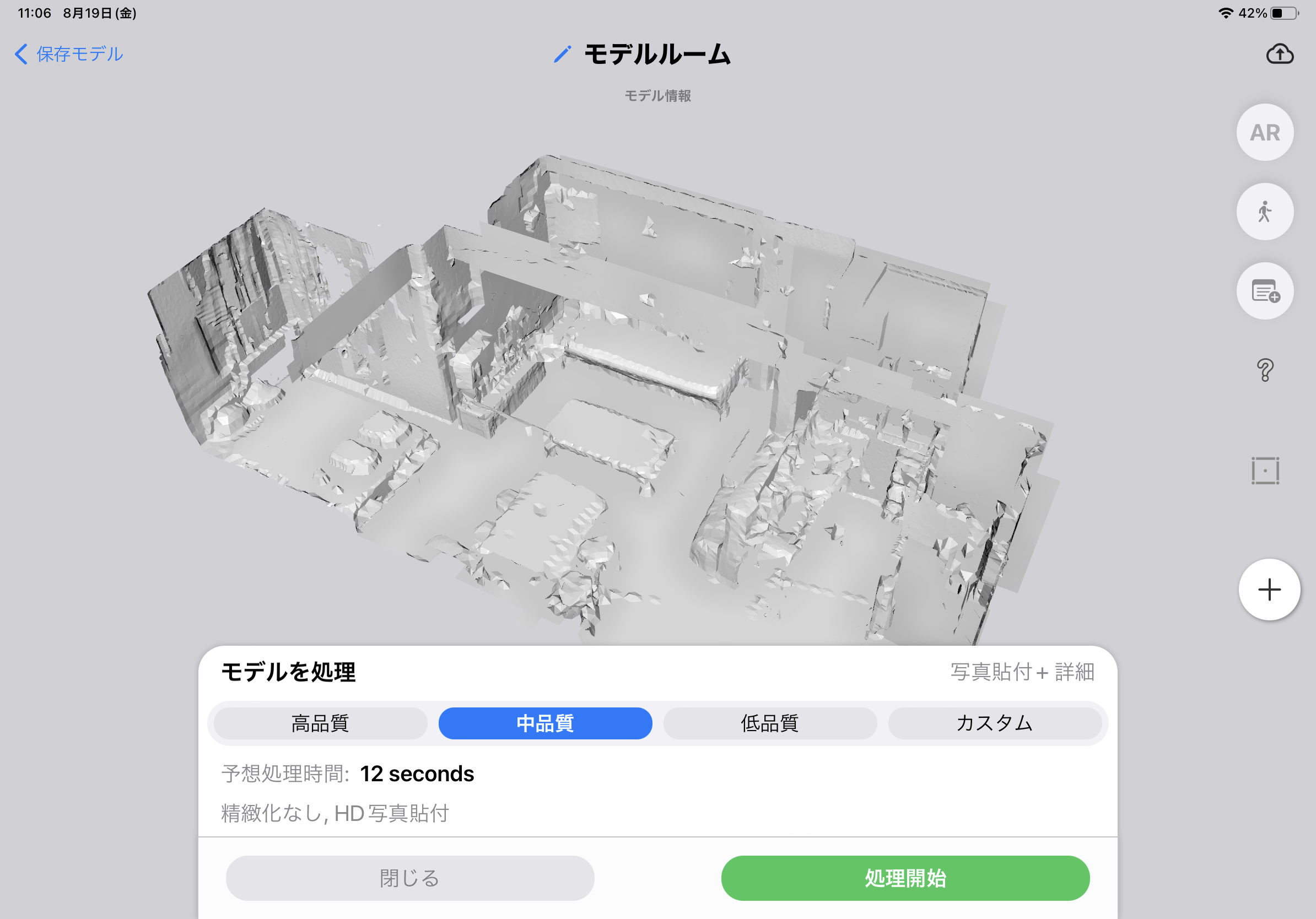
ScanatOnce shooting is complete, you will automatically be taken to the "Process Model" screen.
Although processing takes only a very short time, if you want to take photos continuously, you can choose to process them all at once later. In that case, click “Close” to close the processing screen, and then take more photos of the model.

There are four processing quality options: “High Quality,” “Medium Quality,” “Low Quality,” and “Custom.” However, if you’re using a standard iPhone Pro or iPad Pro, you should select “Medium Quality.” This is because your device may lack sufficient memory and CPU power to handle “High Quality” processing, which could result in excessive noise in the final model.
If you're using a high-end iPad Pro with 1 TB or more of storage, please select "High Quality." You should end up with a very high-quality model.
After selecting the model quality, click the "Start Processing" button.

When the model begins processing, a "Processing..." pop-up appears, displaying the estimated processing time. Once the estimated processing time has elapsed, the model processing is complete.
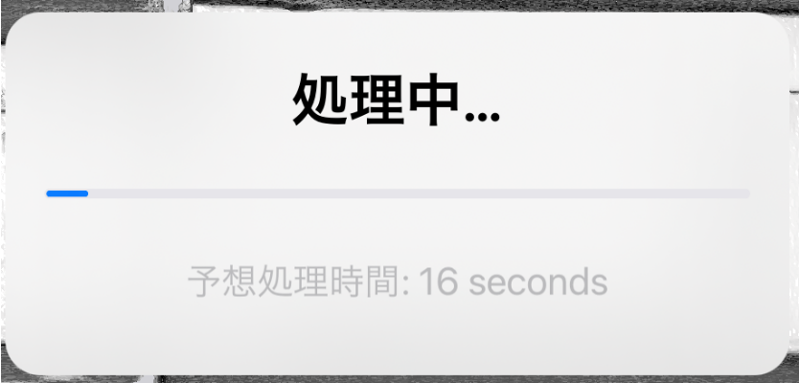
Once the "Processing..." message disappears, the process is complete. When the process is complete, you will be returned to the "Model Information" screen.
After taking a series of photos of a model, when photographing very large subjects, or when your iPhone or iPad has limited storage space, the app mayScanat the app may crash. In that case,Scanat please restart the app.
If a model has already been generated within the app, it may either be complete or still in progress. If the model is complete, you can view it as is. If the processing is not yet complete, please run the process again. (This will not affect the final model.)
Next time, I’d like to write about tips and things to keep in mind when photographing models.