nat, Inc nat is conducting interoperability testing to ensure that data captured using the 3D scanning app Scanat ” can be seamlessly utilized in practical applications.
In this article, we’ll show you how to import Scanat into the CAD software “VectorWorks” and introduce a method for efficiently calculating elevation differences on a building site.
🔳Challenges in Surveying Sites with Significant Elevation Differences and Improvements Achieved with Scanat
When there is a distance between the road and the building site, traditional measurement methods used to be very time-consuming.
[Conventional Method]
The standard procedure involved using a rotating laser level to remeasure survey points and machine installation points several times, plotting the elevation differences on drawings, and finally calculating the final values.
Since the position had to be fixed each time a machine was installed, at least two workers were required, and coordinating the schedule was a major burden.
[After Scanat Scanat]
There is no need to reinstall the machine, and the task can be performed by a single person.
Work efficiency has improved to about one-fifth of what it was previously.
🔳Steps for Importing into Vector Works
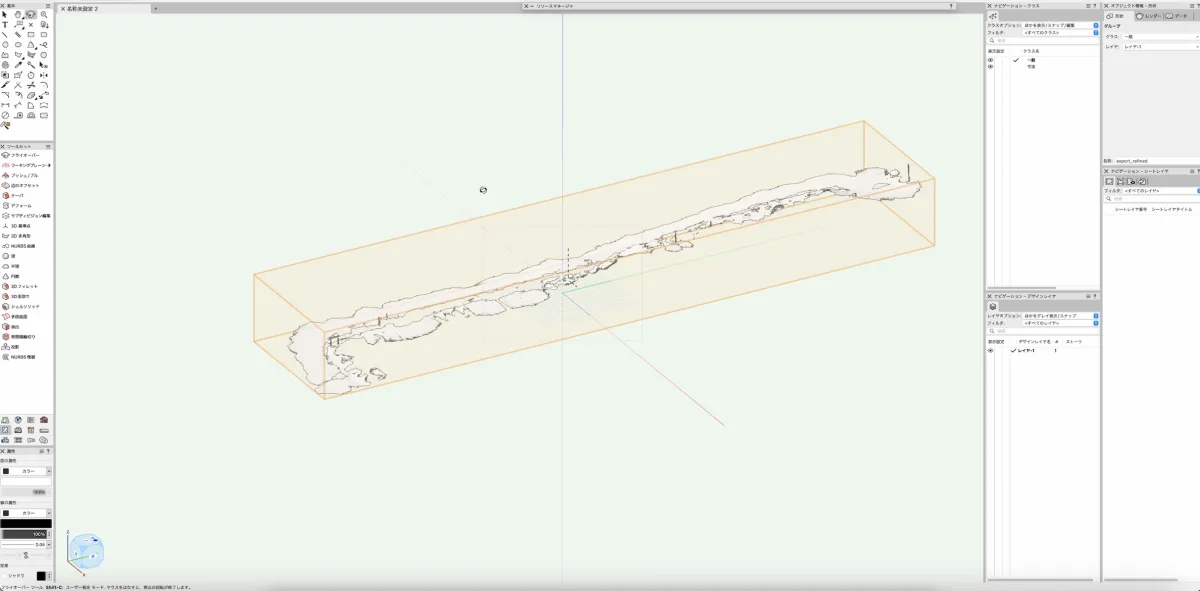
The steps for importing Scanat USDZ data into VectorWorks are as follows.
1. Select "Import USDZ (3D)" from the menu
Open the "File" menu in the upper-left corner of the VectorWorks screen, then select "Import USDZ (3D)" from the "Import" submenu.
Once the relevant data appears, click "Open" in the lower-right corner.

2. Review the import options and click OK
The "USD Import Options" dialog box will appear.
Review the settings and click "OK."

3. Import Complete: Checking Elevation Differences
The 3D data is projected onto the drawing.
By referring to the elevation data for each point, you can easily check the elevation differences on the site and reflect them in the drawing.

🔳Ideas for Future Use
The scope of Scanat applications has the potential to expand even further, beyond simply capturing elevation differences on a site.
- The completed staircase structure was documented Scanat and saved as a digital archive along with the drawing data for each floor plan. This will be used for future renovations and inspections.
- We are currently considering Scanat to visualize structural elements (such as the framework and insulation) that are not visible from the exterior at the completion exhibition, with the aim of using this to explain the project to customers and build their trust.
If you would like more information about the integration Scanat and Vector Works, or would like to see a demonstration, please feel free to contact us at
.